Map art is pixel art built flat on the ground and viewed through an in-game map hung in item frames. Each block on the map shows as one pixel, so a single map covers a 128 × 128 area of blocks at the closest zoom level. What makes map art interesting — and confusing — is that the color a map shows isn’t the block’s texture. It’s the block’s map color, a fixed value per block, adjusted by a shading rule that depends on height.
How map colors work
Every block has one map color. Grass shows as green, sand and birch planks as a pale yellow, white concrete as white, and so on. There are about 60 usable base colors once you leave out water and blocks that are awkward to place. Many blocks share a map color: dirt and granite look the same on a map, for example, so you only need one block per color.
The map renderer then adds shading. For each block, it compares its height with the block directly to its north:
- If the block is higher than its northern neighbour, the pixel is drawn in the light shade.
- If it is at the same height, it uses the normal shade.
- If it is lower, it uses the dark shade.
That’s it. The amount of the height difference doesn’t matter — one block higher and twenty blocks higher both give the light shade. This is the key to keeping staircase builds low, as we’ll see below.
Flat map art
If every block is at the same height, every pixel uses the normal shade. That gives you roughly 60 colors and a build that is a single layer. Flat map art is the easiest to build in survival: no towers, no scaffolding, just a 128 × 128 floor. It’s also robust: you can walk on it, and nothing depends on precise heights.
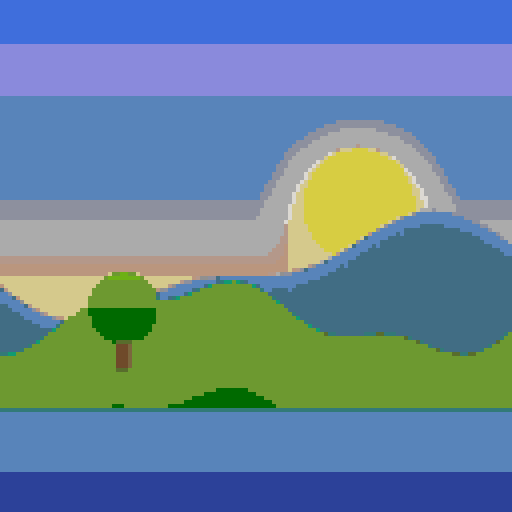 Flat
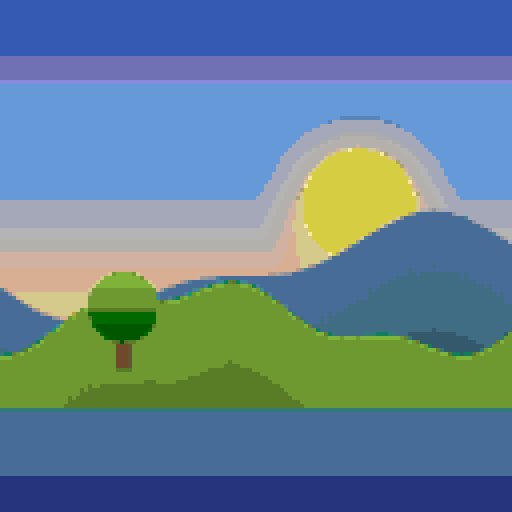 Staircase
 map art
By making blocks step up and down relative to their northern neighbours, you can choose the dark, normal or light shade for each pixel individually. That triples the palette to about 180 colors. Skies become smooth gradients and faces get realistic shading — the difference is obvious in the comparison above.
The cost is height. Each column (running north to south) becomes a staircase of rises and falls. In this generator, the sample image above needs 47 blocks in its tallest column in staircase mode, versus 1 for flat.
The noobline
The first row of the map has no northern neighbour inside the image, so the game looks at the row just outside it. If that row is empty or at a random height, the whole top row of your art gets the wrong shade. The fix is a noobline: an extra row of any block, one block north of the image, at the height that gives the first row the right shade. The generator includes it in the material list (128 blocks per map width) and in the row guide.
How the generator keeps heights low
A naive staircase simply adds one for every light pixel and subtracts one for every dark pixel as you walk south. On images with large dark or light areas, that produces towers hundreds of blocks high. Because only the direction of each step matters, we can do better.
The generator groups consecutive blocks that must be level into runs, then gives each run the smallest height that still satisfies every “higher than” and “lower than” relation in the column. It’s the same idea as the classic “give each child at least one more candy than a lower-rated neighbour” puzzle: one pass from north to south counts the rises, one pass from south to north counts the falls, and each run takes the larger of the two. Any long descent restarts from zero, so columns stay as low as mathematically possible for that image.
| Mode | Colors | Tallest column (sample image) | Blocks incl. noobline |
|---|---|---|---|
| Flat | 59 | 1 block | 16,512 |
| Staircase | 177 | 47 blocks | 16,512 |
Dithering on maps
Dithering scatters pixels of nearby colors to fake the colors in between. On maps, where you’re limited to the map color table, it can make photos look much better — but it also makes columns change shade more often, which in staircase mode means more up-and-down steps. Try flat with dithering first; it often looks almost as good as staircase without the height.
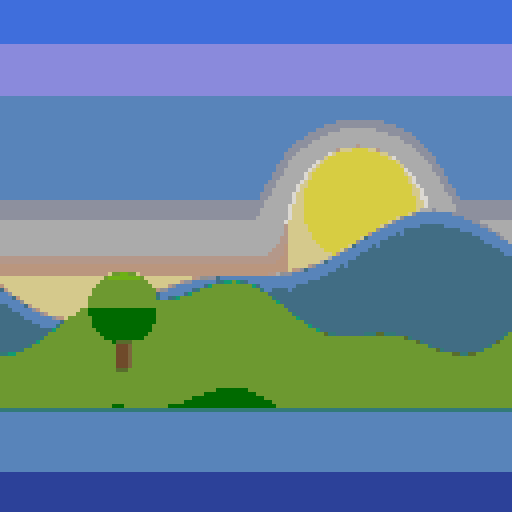 Flat, no dithering
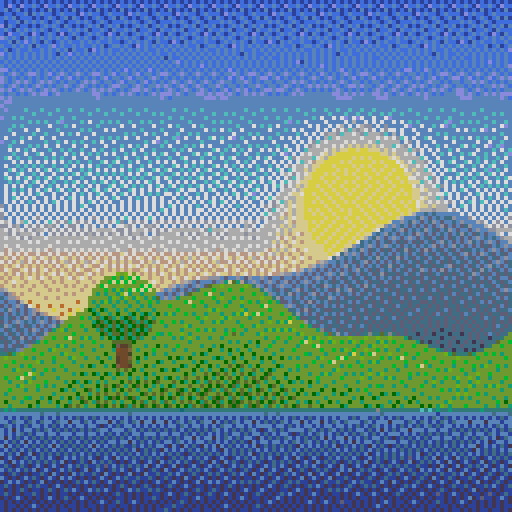 Flat, Floyd–Steinberg
Which should you choose?
- Flat for survival, first maps, logos and anything with flat colors. One layer, simplest to build, easiest to fix.
- Flat + dithering for photos when you want a single-layer build.
- Staircase for portraits, skies and detailed artwork, when you’re comfortable building tall and have creative mode or a schematic mod.
Aligning with map boundaries
Maps don’t start where you are standing: at zoom level 0 they cover fixed 128 × 128 areas aligned to the world grid, offset by 64 blocks from multiples of 128. Make a map at your build site first, look at where its edges fall, and build your art inside those edges. The noobline sits just outside the northern edge, so it doesn’t appear on the map itself.
Once it’s built, copy the map with an empty map at a cartography table, and lock it with a glass pane so later changes in the area don’t alter the art.