Pixel art converter with grid
Turn any photo into clean pixel art: pick the pixel size, let the converter choose the best colors (or paste your own palette), and switch on a pixel grid for counting. Free, private and instant — nothing is uploaded.
How the pixel art converter works
Pixel art has two ingredients: a low resolution and a limited palette. The converter first shrinks your image by the pixel size — with pixel size 8, every 8 × 8 block of the photo is averaged into one pixel. It then reduces the colors. With Auto (from image) it uses median cut: all pixel colors are put in one box, the box is split at the median of its widest color channel, and the split repeats until there are as many boxes as colors you asked for. Each box's average becomes a palette color, so a mostly-blue photo gets several blues instead of wasting slots on colors it barely uses.
Finally every pixel is mapped to its nearest palette color. Threshold (no dithering) gives flat, hand-pixelled shapes; ordered dithering adds the checkerboard shading you see in old console sprites.
Pixel size
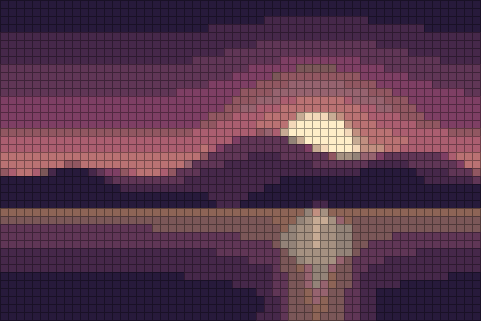 Pixel size 4
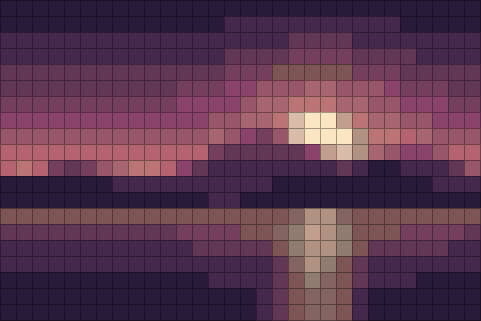 Pixel size 8
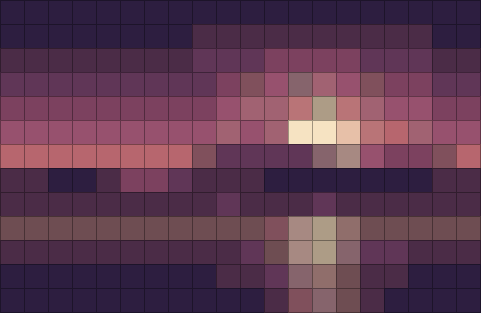 Pixel size 12
Pixel size decides the final resolution. For a 1600 × 1067 photo:
| Pixel size | Pixel art resolution | Export at 8× | Feels like |
|---|---|---|---|
| 2 px | 800 × 534 | 6400 × 4272 | Detailed illustration |
| 4 px | 400 × 267 | 3200 × 2136 | Late 16-bit backgrounds |
| 8 px | 200 × 133 | 1600 × 1064 | Classic sprite art |
| 12 px | 133 × 89 | 1064 × 712 | Chunky icon style |
| 16 px | 100 × 67 | 800 × 536 | Bead / mosaic pattern |
| 32 px | 50 × 33 | 400 × 264 | Tiny emoji-size icon |
Aiming for a fixed canvas? Divide your image width by the target: a 1,280-pixel-wide image needs pixel size 20 for a 64-pixel sprite, 10 for 128 pixels. Crop to a square first for icons and avatars.
Number of colors
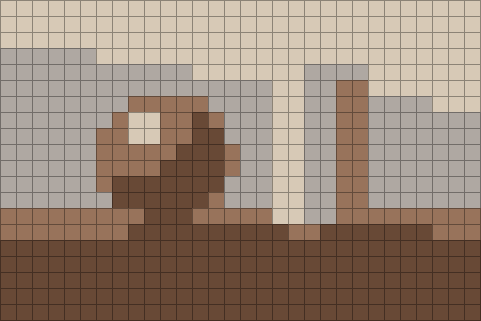 4 colors
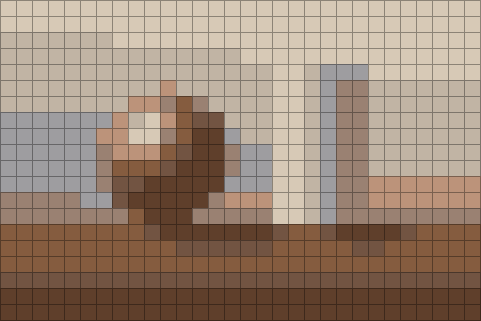 8 colors
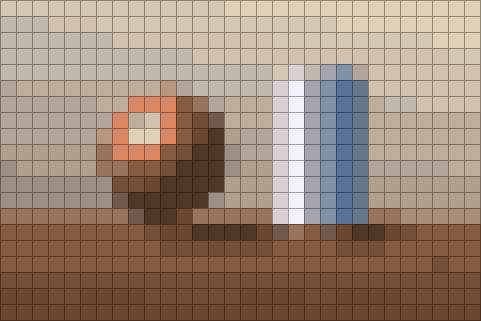 24 colors
Fewer colors make the picture read like pixel art rather than a blurry thumbnail. Start with 8 for portraits and characters, 12–16 for landscapes, and up to 32 if you need smooth skies. The swatches under the palette menu show exactly which colors were picked; switch to Custom palette (hex list) to paste a fixed palette — your game's palette, a brand palette, or a palette of real bead or thread colors.
Show pixel grid
The grid draws a thin line between every pixel, both in the preview and in the downloaded PNG (at 4× export or larger). Use it when the pixel art is a plan for something physical: fuse beads, mosaic tiles, knitting or cross stitch charts, LEGO mosaics or a sprite you will redraw by hand. A bold line every 8, 10 or 16 pixels makes counting much faster — 10 matches most bead pegboards and stitch charts, 16 matches tile-based game maps.
| Project | Pixel size | Colors | Grid |
|---|---|---|---|
| Game sprite reference (64 × 64) | image width ÷ 64 | 8–16, or your game palette | Bold every 8 or 16 |
| Fuse bead pattern (29 × 29 pegboard) | image width ÷ 29 | 6–12 bead colors (hex list) | Bold every 10 |
| Profile picture / avatar | 8–12 | 12–16 auto | Off |
| Wall poster | 4–6 | 16–32 auto | Off, export 16× |
To dither or not to dither?
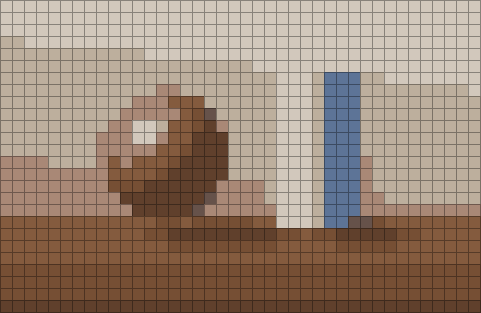 Threshold
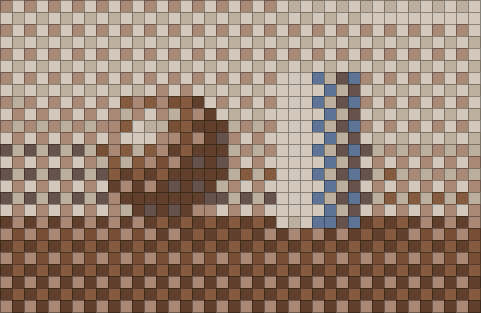 Bayer 2×2
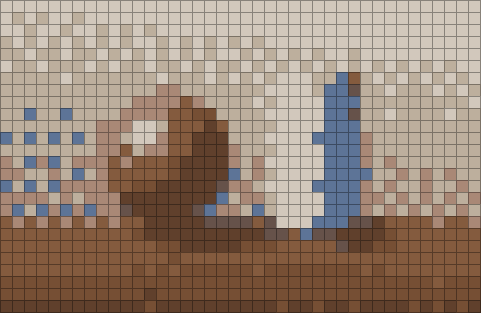 Floyd–Steinberg
Most hand-made pixel art uses no dithering at all, or small patches of checkerboard shading. Threshold gives that clean look. Bayer 2×2 adds regular sprite-style shading that stays tidy at large pixel sizes. Error diffusion (Floyd–Steinberg) keeps the most tonal detail but scatters single pixels, which looks like noise rather than pixel art at big pixel sizes — keep it for photographic results.
Export tips
- Export at 8× or 16× to post online: social sites blur small images when they enlarge them.
- Choose Indexed PNG for game engines and printing: every pixel is guaranteed to be one palette color and files are much smaller.
- For bead and stitch planning, export with the grid and print at 100%.
More on palettes in retro palettes, and on the classic 4-color look in how to make a Game Boy style photo.
FAQ
How do I turn a photo into pixel art?
Upload the photo, choose Palette → Auto (from image), set Number of colors to 8–16 and raise Pixel size until the image is the resolution you want (for example 8 px turns a 1,600-pixel photo into 200 pixels across). Use Threshold for flat colors, then download at 8× or 16×.
How do I add a grid to pixel art?
Tick "Show pixel grid". Lines are drawn between pixels in the preview and in the download when the export scale is 4× or more. Choose the grid color and a bold line every 4, 8, 10 or 16 pixels to make counting easier.
Can I use my own palette?
Yes. Choose Palette → Custom palette (hex list) and paste hex codes separated by spaces, commas or new lines — up to 64 colors. Every pixel will be one of those colors exactly.
What does the number of colors do?
With the Auto palette the converter uses median cut to pick that many representative colors from your image. 4–8 colors look bold and graphic; 16–32 keep more shading.
Is the export really pixel-perfect?
Yes. Exports use nearest-neighbour scaling, so each pixel becomes a crisp square block. Choose Indexed PNG for the smallest file with exactly your palette colors (the grid version is saved as a regular PNG).