CMYK halftone generator
Separate any image into cyan, magenta, yellow and black halftone screens at 15°, 75°, 0° and 45°, preview the rosette and export overprinted PNG or layered SVG.
Tone: contrast, dot gain, min / max dot
CMYK halftone halftones: what to know
Four-color process printing reproduces full-color images with only four inks. Each ink is screened separately into its own halftone, and the four screens are rotated to different angles — traditionally cyan 15°, magenta 75°, yellow 0° and black 45° — so they form a tight rosette instead of a coarse moiré pattern.
This page converts your image to CMYK with grey-component replacement (the shared grey of cyan, magenta and yellow moves into black), screens each channel at its own angle and overprints them with multiply blending, just like ink on paper. Change any channel angle to see why the standard 30° separation matters.
Use it for comic and pop-art effects, risograph planning, screen printing simulated process jobs or teaching how color printing works. The SVG export keeps each plate as a separate group so you can output films or recolor them.
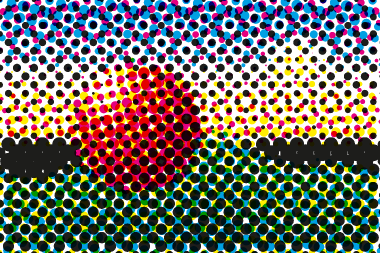 Standard angles
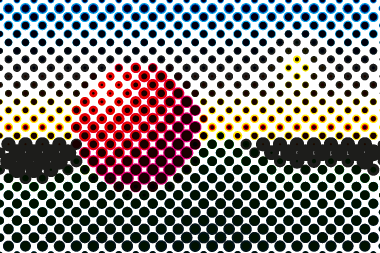 All at 45°
Recommended settings
- Keep C, M and K 30° apart (15°, 75°, 45°)
- Yellow at 0° — its moiré is the least visible
- Larger cells (14–24 px) for a bold pop-art look
- SVG keeps each color plate as its own group
How to make a halftone
- Add an image. Click Upload image, drag a file onto the preview or paste with Ctrl/⌘+V. Photos, logos and gradients all work; transparent PNGs keep their transparency.
- Choose shape and size. Pick dot, line, square, diamond or cross, then set the cell size (dot spacing) and screen angle — or switch to CMYK for four color separations.
- Tune the tones. Open Tone to adjust contrast, dot gain and the minimum and maximum printable dot for screen printing, DTF or engraving.
- Download. Choose the output width and click Download PNG, or SVG for vector dots. Tick Transparent background to export only the ink.
FAQ
How do I make a halftone for cmyk halftone?
Four-color process printing reproduces full-color images with only four inks. Each ink is screened separately into its own halftone, and the four screens are rotated to different angles — traditionally cyan 15°, magenta 75°, yellow 0° and black 45° — so they form a tight rosette instead of a coarse moiré pattern.
Can I export a vector SVG halftone?
Yes. Click SVG to download every dot, line, square, diamond or cross as a vector path. Each ink is a single compound path in a rotated group, so it opens cleanly in Illustrator, Inkscape, Affinity Designer, Figma, Cricut Design Space and LightBurn.
What cell size should I use?
Cell size is the distance between dots in pixels. At 300 DPI output, cell size = 300 ÷ LPI: 6–7 px is about 45–50 LPI (screen printing on 230 mesh), 10 px is 30 LPI, and 16 px and up gives a bold pop-art look.
What are the standard CMYK halftone angles?
Cyan 15°, magenta 75°, yellow 0° and black 45°. The three strong inks are 30° apart, which produces a small rosette instead of a visible moiré; yellow is placed on the remaining angle because its moiré is the least noticeable.